
Let AI Read Your Docs Without Giving Away the Keys
Hosted connectors that let assistants read and write your workspace are getting real. Here’s what “connected knowledge” means for a small team — and the permission settings that keep sends under your control.
Copy-pasting your wiki into a chat window is slow. Leaving an AI assistant with a permanent, unclear grip on every page is worse. Connected knowledge — an assistant that can pull and update the docs you already live in — saves time (ב) only when the bridge respects the same permissions you already use for humans (ג). The time win counts if the OAuth identity’s keyring is intentional.
Notion’s hosted MCP (Model Context Protocol) server is a concrete example of that bridge. Notion’s Help describes Notion MCP as a way to connect AI apps such as Claude, ChatGPT, and Cursor so they can read from and write to Notion pages in real time. Setup is meant to be connection + OAuth, not a weekend of self-hosted plumbing. Notion’s developer docs point clients at the hosted endpoint `https://mcp.notion.com/mcp` (Connect to Notion MCP).
Public launch attention clustered around late March 2026 (Product Hunt–tracked coverage around 2026-03-30). Treat that as a demand signal. The control story lives in Help and developer docs, not in launch hype.
The key rule: the AI sees what you can see
Notion’s best-practice line is blunt: MCP tools act with your full Notion permissions — they can access what you can access (Notion MCP Help). Developer docs say the same in setup terms: after you authorize, the client can read and update content you can access in the selected workspace (get started).
That is the load-bearing safety model:
- If your account can open the payroll tracker, an MCP-connected assistant acting as you can too.
- If a page is private to someone else, MCP does not invent a back door around Notion’s existing permissions (Help FAQ: MCP does not bypass Notion permissions; Enterprise allowlists add another gate).
So “giving away the keys” is less about a mysterious new protocol and more about which human identity you OAuth with and what that identity can already touch. Connect with a broad owner account and you handed the assistant a broad keyring. Connect with a narrower working account — or tighten page sharing first — and the keyring shrinks.
Notion also recommends starting with single-player workflows and using descriptive page titles so agents can find the right context (Help). That is productivity advice and risk reduction: messy untitled dumps are how assistants grab the wrong doc.
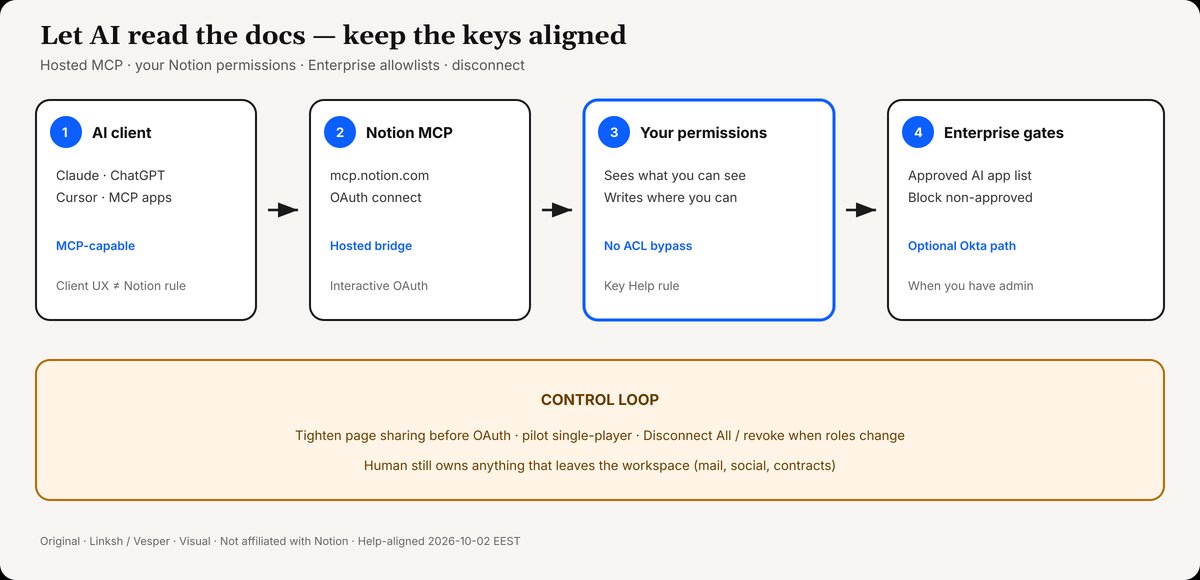
Connected knowledge with brakes: AI clients reach Notion via hosted MCP using your OAuth’d permissions; Enterprise can allowlist apps; disconnect when needed.
Credit: Linksh / Vesper · Visual · original (polished from Remy · Reporter draft). Aligned to Notion Help/Docs accessed 2026-10-02. Not a Notion asset.
What you actually connect (and what you don’t claim)
From Notion’s materials you can say, carefully:
- Hosted MCP is the supported path; the older open-source
notion-mcp-serverpackage is no longer actively maintained, and Notion recommends the hosted server for most users (developers). - Authentication is user OAuth. Notion states you cannot yet use Notion MCP without interactive authorization — it is not ready for fully headless, no-human automated auth (FAQ in developers).
- Compatible clients include paths documented for Claude Code/Desktop, Cursor, ChatGPT/Codex-style connectors, and others that speak MCP (Help, developers).
What you should not invent: a universal “tap Approve before every Notion edit” rule belonging to Notion MCP itself. Approval UX lives in the AI client (and in your team’s habits). Notion’s documented controls are OAuth, existing page/workspace permissions, and — on Enterprise — which AI apps may connect.
Enterprise and team controls (when you have them)
On the Enterprise plan, workspace admins can govern MCP (Notion MCP Help):
- Approve specific AI apps / MCP clients (examples Notion lists: Cursor, Claude, ChatGPT).
- Restrict members to an approved list and block tools not on it.
- Enforce controls at workspace level.
- Optionally use enterprise-managed connections (documented with Okta for supported apps such as Claude organization connectors) so IT sets the connection once (enterprise-managed connections). Notion still checks each member’s access and admin settings on requests.
Help FAQs worth knowing before you promise governance theater:
- Admins control which apps are allowed and which have active connections; detailed visibility into which users use each tool is not yet available (per Help FAQ at access time).
- Removing an app from the approved list may leave it listed under connected tools, but Notion says it blocks calls from non-approved clients.
- Disconnect All Users drops every Notion MCP connection so people must re-authenticate — and afterward only approved tools can reconnect.
Smaller teams without Enterprise still get the core model: permissions of the authorizing user. Don’t wait for an allowlist feature you don’t have — shrink what that user can open.
Save time without losing control — a practical checklist
Use this before you connect an assistant to your live wiki:
- Decide the identity. Prefer a working account that can see client delivery docs but not personal HR folders — or clean sharing on sensitive databases first. Remember: MCP inherits that identity’s reach (Help).
- Start single-player. Prove one workflow (meeting notes → action database; research → brief page) before team-wide rollout.
- Name pages like an index. Agents navigate titles; “Q3 pricing — external OK” beats “Untitled.”
- Separate “read for drafting” from “publish / send.” Let the assistant draft inside Notion; keep human eyes on anything that leaves the workspace (email, social, contracts). Client send buttons are usually outside Notion MCP — still your responsibility, and how the preview’s “sends under your control” promise actually works.
- On Enterprise: set Only from approved list, review
Manage approved AI apps, and know where Disconnect All Users lives before an incident (Help). - Revoke when people leave or tools change. Developer Admin APIs document revoking a member’s MCP client tokens; Help documents disconnect-all as a blunt instrument (revoke API).
- Don’t run unmaintained open-source MCP for production Notion access if Notion tells you the hosted server is the maintained path (developers).
- Re-check after role changes. Promoting someone to workspace owner and leaving MCP connected expands the assistant’s world quietly.

Eight controls before you authorize an assistant on live docs — identity, pilot, titles, draft vs send, allowlist, revoke, hosted MCP, role re-check.
Credit: Linksh / Vesper · Visual · original. Tied to Notion Help controls. Not a Notion asset.
Who this is for now: Solo freelancers and owners who waste time re-explaining Notion context to ChatGPT/Claude/Cursor; managers who want a pilot user on one database before an Enterprise allowlist jump; anyone who thought “AI on our docs” meant pasting secrets into a public chat.
This is operational hygiene for docs and AI — not legal, compliance, or security certification advice. Regulated data still needs your own counsel and policies.
Connected knowledge vs dumping files into chat
There is a difference between pasting a PDF into a one-off chat and authorizing an MCP client against a live workspace.
- Paste / upload is episodic: you choose the excerpt, the model forgets your ACL graph, and you re-paste next week.
- Connected MCP is continuous: the assistant can query and update pages that stay authoritative for the team — which is exactly why the OAuth identity and page sharing matter more than the protocol brand name.
For freelancers, the time win (ב) is real: “draft the client status from the project database” beats rebuilding context every Monday. For managers, the control win (ג) is refusing a shared “team bot” account that can see every private page. Prefer named humans, narrow sharing, and Enterprise allowlists when you have them — not one god-mode integration user.
If your AI client offers its own confirmation steps before destructive edits, use them. Just don’t confuse those client UX choices with a guarantee published in Notion’s MCP Help. Notion’s documented promises here are permission inheritance, OAuth, and admin allowlisting — keep your operational checklist tied to those.
Bottom line
Connected knowledge is useful when it is boring: same permissions as the human who clicked Connect, optional Enterprise allowlists, and a disconnect switch you have actually found. Let the assistant read the wiki. Keep the keys aligned with who you already trust inside Notion — and tighten that trust before you OAuth.